Everything Solin can do
Explore each feature below — see how it works, what it does, and how it helps during your meetings.
Songs & Original Songs
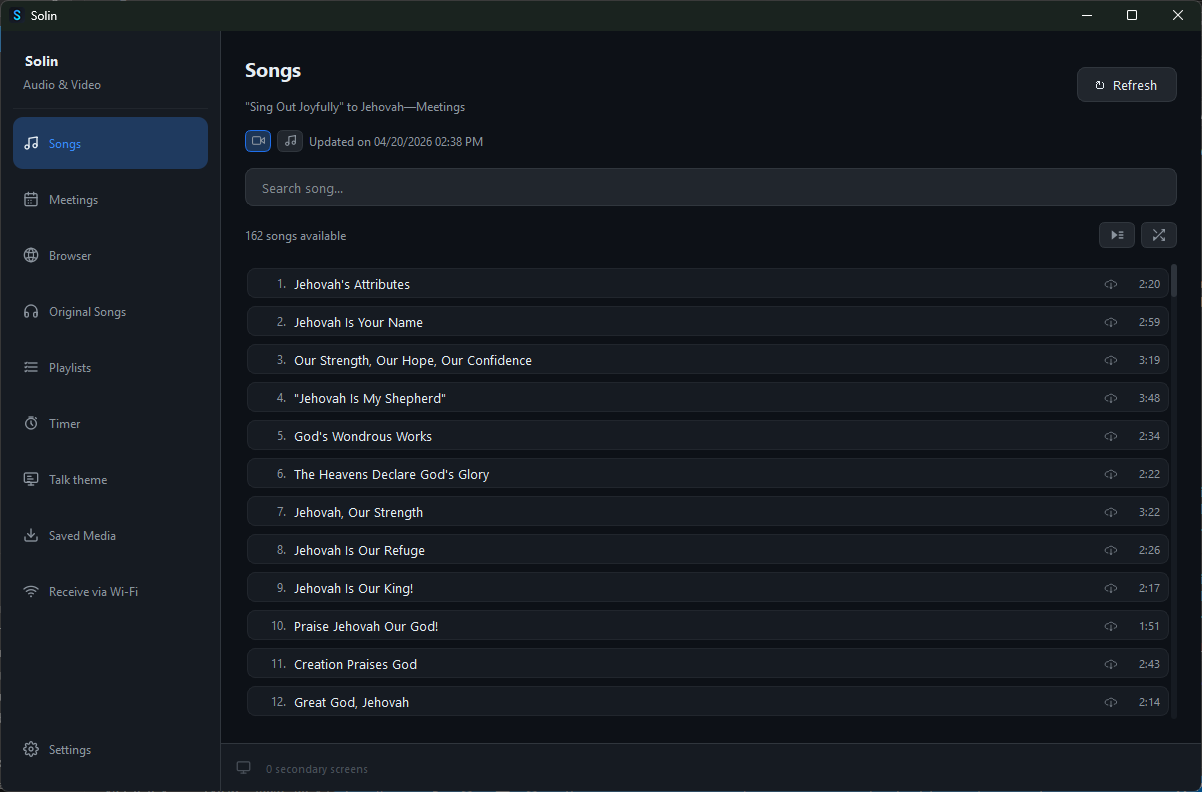
Browse and play Songs and Original Songs. Search by number or title, play in order or shuffle, and download for offline use to avoid interruptions during meetings.
Weekly Meeting Media
Solin reads the meeting schedule for the current and next week and lists every media file that will be used — songs, images and videos — organised by meeting section. Download with a single tap, or let Solin handle it automatically so nothing is missing when the meeting starts, even without internet.
Browser
An integrated browser that lets you access JW.org directly within Solin. Navigate content, project images or videos to the secondary screen, or cast the current tab live to the projector. Use presentation tools like Spotlight, which follows your cursor, to guide attention — all without leaving Solin.
Projector
Send any media to a secondary screen or projector instantly. Zoom with Ctrl + scroll or the +/− keys, and pan by clicking and dragging to highlight details without switching slides. Controls stay on your main screen while the attendance sees a clean, fullscreen display.
Wi-Fi Sharing
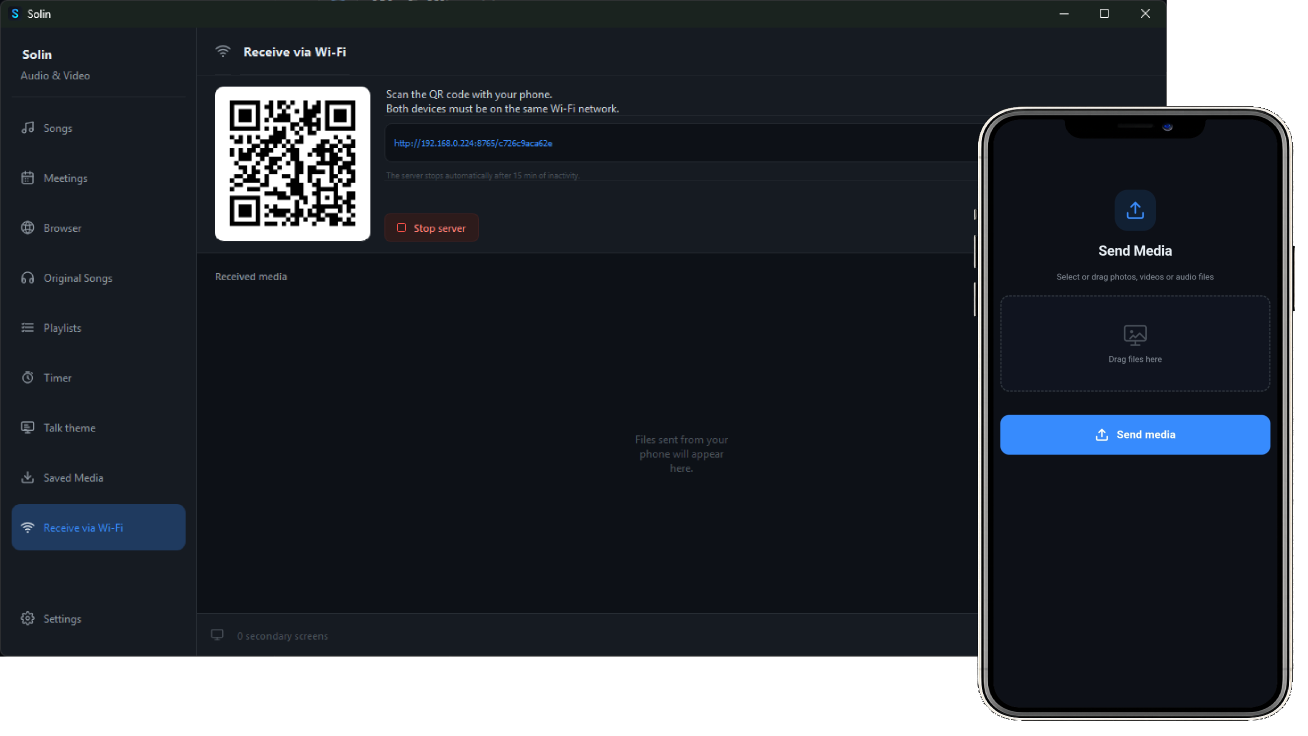
Scan the QR code with your phone or tablet to send media directly to Solin — no cables, apps, or accounts needed.
Playlist
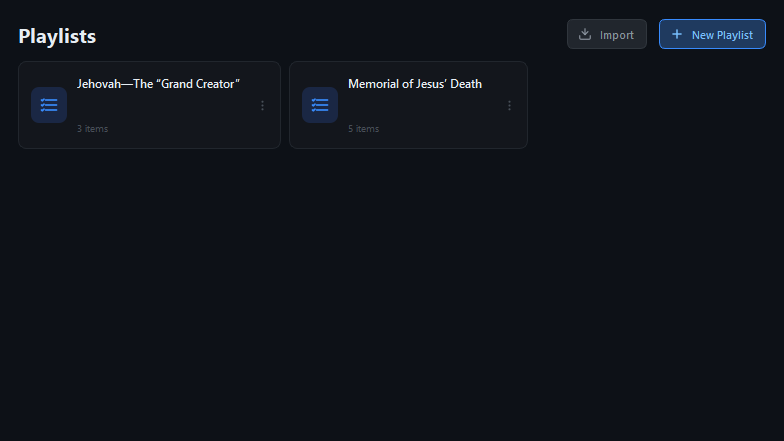
Import .jwlplaylist files or build playlists from scratch. Supports images, videos, audio, PDFs and jwpub. Reorder items by drag-and-drop and project any item to the secondary screen with a single click.
OBS Integration
Connect Solin to OBS Studio so media reaches the brothers on Zoom automatically. Solin switches to the media scene when something is projected and returns to the camera scene the moment it stops.
Enable WebSocket in OBS
In OBS, go to Tools → WebSocket Server Settings. Tick “Enable WebSocket server”, note the port (default 4455) and set a password. Click OK. Then create one scene for your camera and another for your secondary screen, and start the Virtual Camera.
Connect in Solin
In Solin’s Settings, enter the same port and password. Once the status turns green, choose your default scene (camera) and your media scene (secondary screen).
Share audio on Zoom
In Zoom, click Share Screen → Advanced and enable “Share computer sound”. Don't forget to select OBS Virtual Camera as your video source. From this point on, Solin handles everything automatically.
Download the latest version of Solin for your operating system by clicking here.