Everything Solin can do
Explore each feature below — see how it works, what it does, and how it helps during your meetings.
This feature overview may not reflect the newest app release. View changelog
Songs & Original Songs
Browse and play Songs and Original Songs. Search by number or title, play in order or shuffle, and download for offline use to avoid interruptions during meetings.
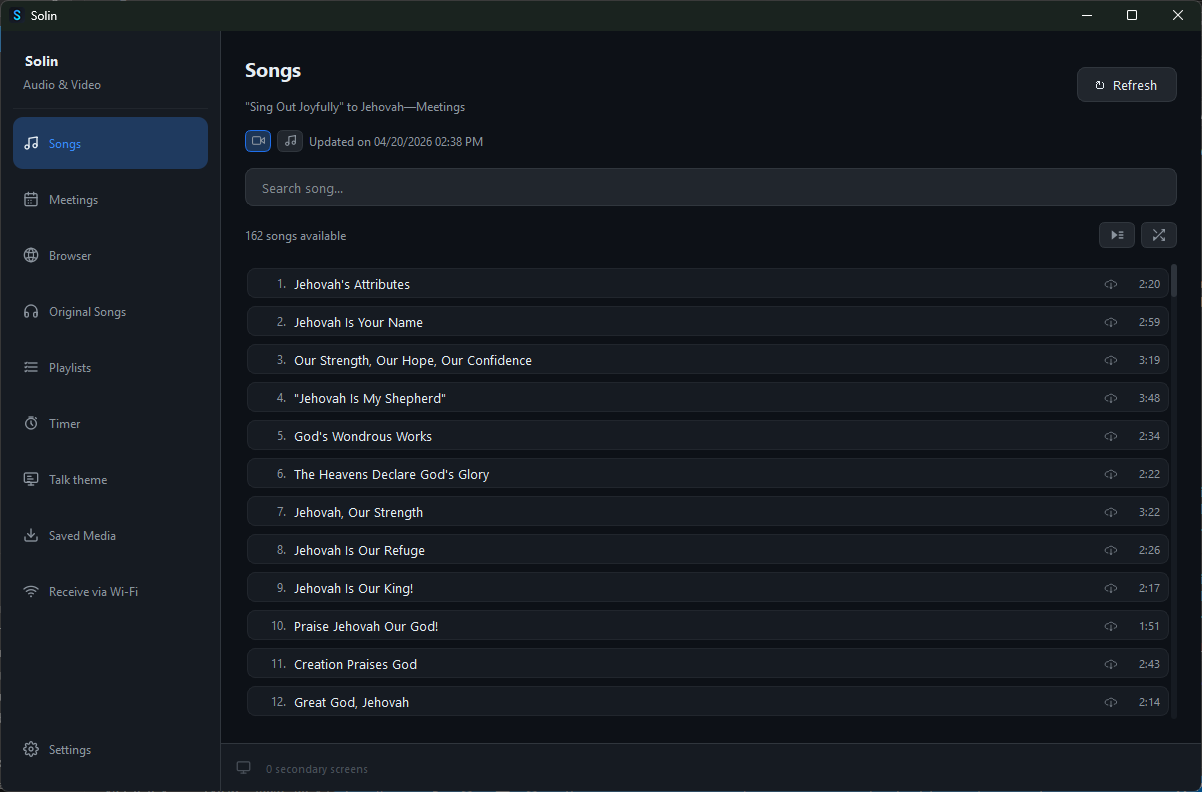
Weekly Meeting Media
Solin reads the meeting schedule for the current and next week and lists every media file that will be used — songs, images and videos — organised by meeting section. Download with a single tap, or let Solin handle it automatically so nothing is missing when the meeting starts, even without internet.
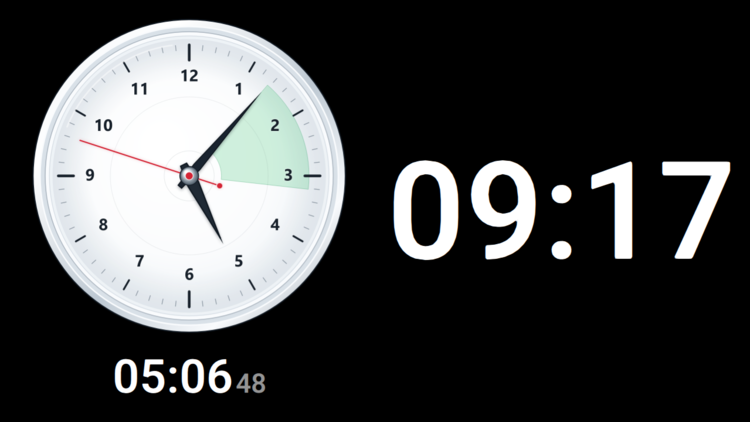
Timer
Keep every meeting part on time with a timer built around the schedule. Start each part as it begins, follow the remaining or elapsed time at a glance, and show a clear clock and timer on a dedicated monitor.
Browser
An integrated browser that lets you access JW.org directly within Solin. Navigate content, project images or videos to the secondary screen, or cast the current tab live to the projector. Use presentation tools like Spotlight, which follows your cursor, to guide attention — all without leaving Solin.
Projector
Send any media to a secondary screen or projector instantly. Zoom with Ctrl + scroll or the +/− keys, and pan by clicking and dragging to highlight details without switching slides. Controls stay on your main screen while the attendance sees a clean, fullscreen display.
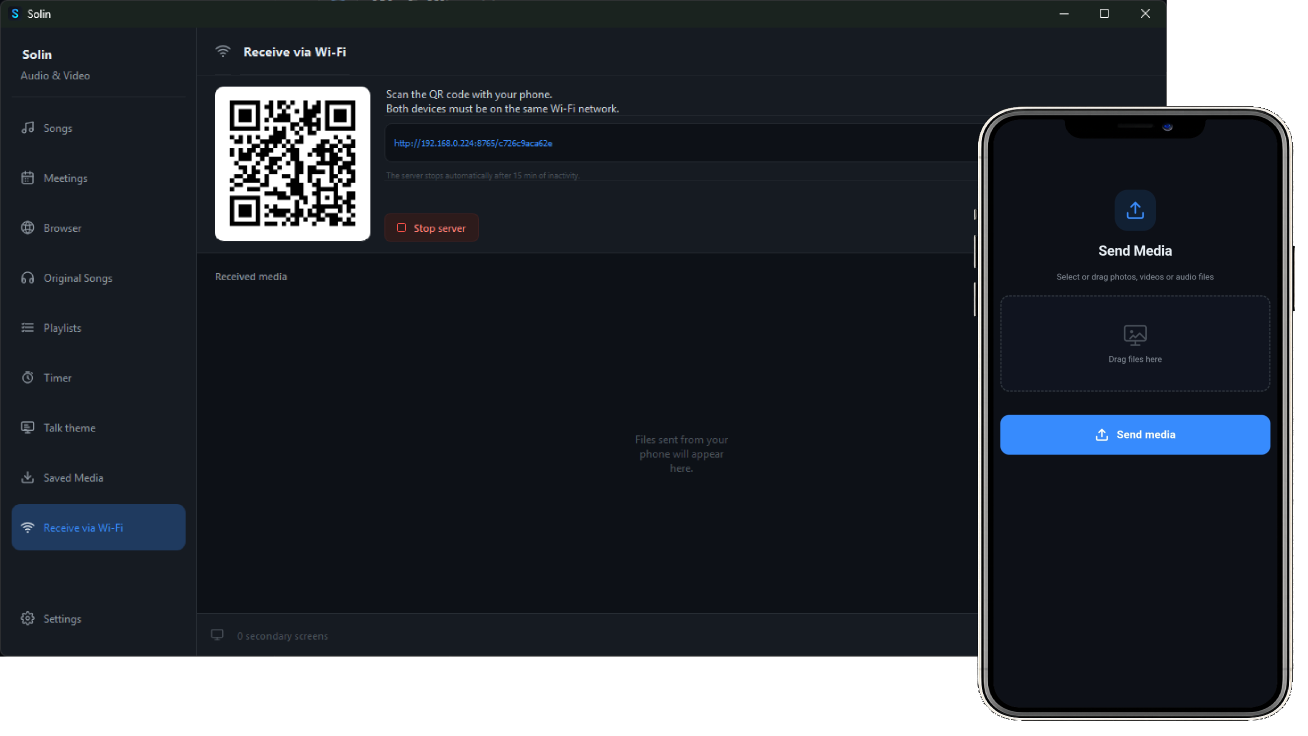
Wi-Fi Sharing
Scan the QR code with your phone or tablet to send media directly to Solin — no cables, apps, or accounts needed.
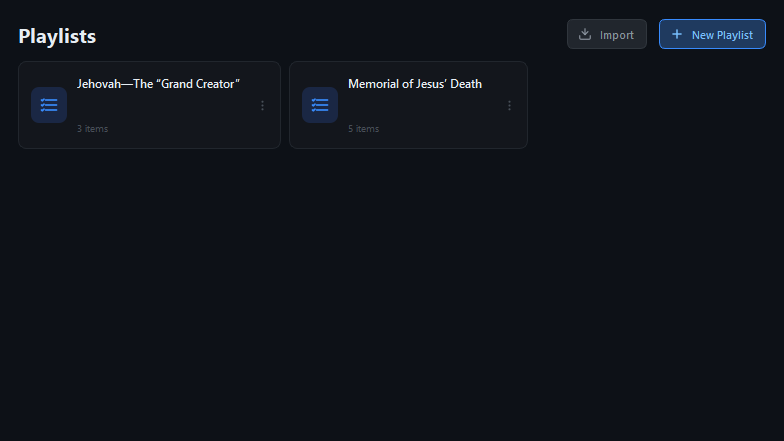
Playlist
Import .jwlplaylist files or build playlists from scratch. Supports images, videos, audio, PDFs and jwpub. Reorder items by drag-and-drop and project any item to the secondary screen with a single click.
OBS Integration
Connect Solin to OBS Studio so OBS can switch between the regular camera scene and the Solin media scene automatically during projection.
Prepare OBS Studio
In OBS, go to Tools → WebSocket Server Settings. Enable the WebSocket server, keep the port ready, and start the Virtual Camera if Zoom Meetings will receive video from OBS.
Connect in Solin
In Solin settings, enter the same port and password. Then choose the default scene for the tribune camera and the media scene that captures Solin's projection monitor.
Choose the audio path
Video switching and audio routing are separate. Use Zoom's computer-audio sharing, a virtual mixer, or an existing audio setup.
Open audio guideDownload the latest version of Solin for your operating system by clicking here.